
To open multiple URLs from Excel without VBA, copy a column of full web addresses, paste it into OpenURL, clean the list, and open a small batch of tabs. You can also import a TXT or CSV file. The important first step is to copy the actual addresses, rather than the labels displayed on hyperlinks.
This workflow is useful when you have a spreadsheet of product pages, research sources, or pages to review. You keep your notes in the spreadsheet and use the browser tool to open the links.
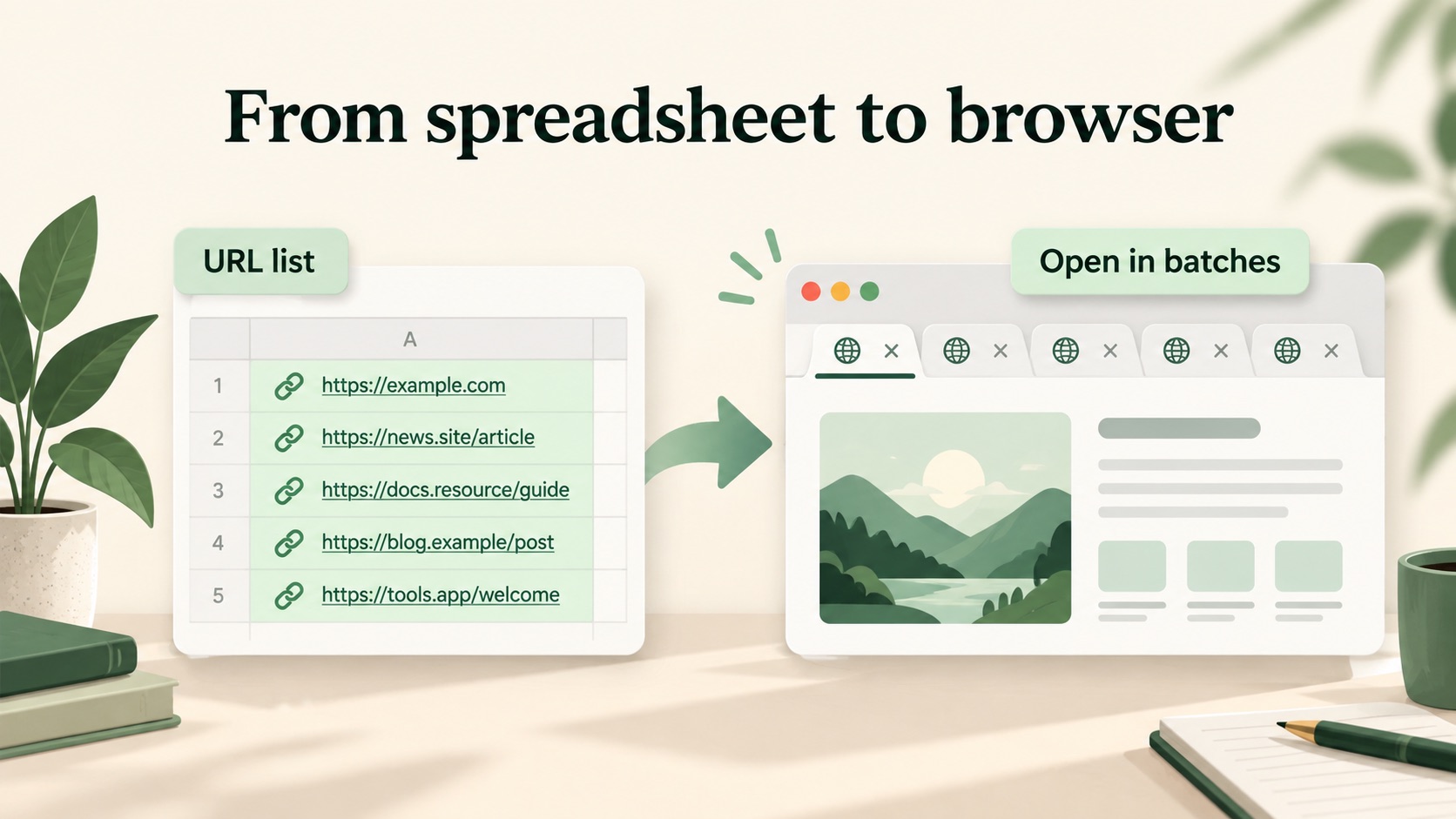
1. Prepare a column of actual URLs
Create or locate a column containing one complete address per row. Select only the rows you want to review, leaving out the column heading and unrelated notes. A short starting list might look like this:
https://example.com/products/item-a
https://example.org/resources
https://example.net/contact
Full addresses make the destination easier to check. OpenURL can add HTTPS to a domain that has no protocol, but keep an explicit http:// address when that is what your destination requires. Preserve any path or query string needed to reach the correct page.
What if the cells say “Visit website” instead of showing a URL?
A clickable label and its destination are different values. Microsoft documents that Excel's HYPERLINK(link_location, [friendly_name]) function can display a friendly name while linking to another address. See the Microsoft HYPERLINK reference.
For example, =HYPERLINK(A2,"Visit website") uses the address in A2. Copy the source address column in this case. For a manually inserted hyperlink, inspect its destination and put that address in your URL column. If a destination is written directly inside a formula, use that destination rather than pasting the formula itself.
Before copying a large selection, paste one cell into the URL box and check the result. If it becomes “Visit website” instead of a web address, prepare the actual URL values first. Exporting labels to CSV does not turn them into their hidden destinations.
2. Paste the URL column into OpenURL
- Select the cells containing the addresses in Excel.
- Copy them with Ctrl+C on Windows or Command+C on Mac.
- Open the OpenURL workspace and click the URL list, one per line box.
- Paste with Ctrl+V or Command+V, then check that each row contains the intended address.
For this task, leave Domain prefix and Path suffix empty. Those optional controls change destinations; they are unnecessary when your spreadsheet already contains the pages you want to visit.
3. Open links from a CSV or TXT file
If your list is already saved as a file, choose Import TXT / CSV in the workspace. For a predictable import, use a single column of plain URL values without a heading, descriptions, or spreadsheet formulas. A TXT file with one address per line is another simple option.
OpenURL's file control accepts TXT and CSV, rather than Excel workbook files such as XLSX. Copy the URL cells directly from your workbook or export the prepared URL column to CSV first. Keep your original workbook for notes and other columns.
After importing, review the list before opening it. A spreadsheet export is only useful here if its cells contain addresses, not just hyperlink display text.
4. Clean the list and check the destinations
Click Clean up links to normalize the list, remove duplicates, and filter invalid entries. Compare the cleaned list with your intended selection. Keep the spreadsheet as your record if repeated rows represent separate items you still need to track.
The Valid URLs count describes accepted addresses; it does not mean those pages are online. A correctly formatted URL can still lead to a missing page, a sign-in screen, or a redirect. Likewise, two addresses that reach the same page can remain distinct when their paths or query strings differ.
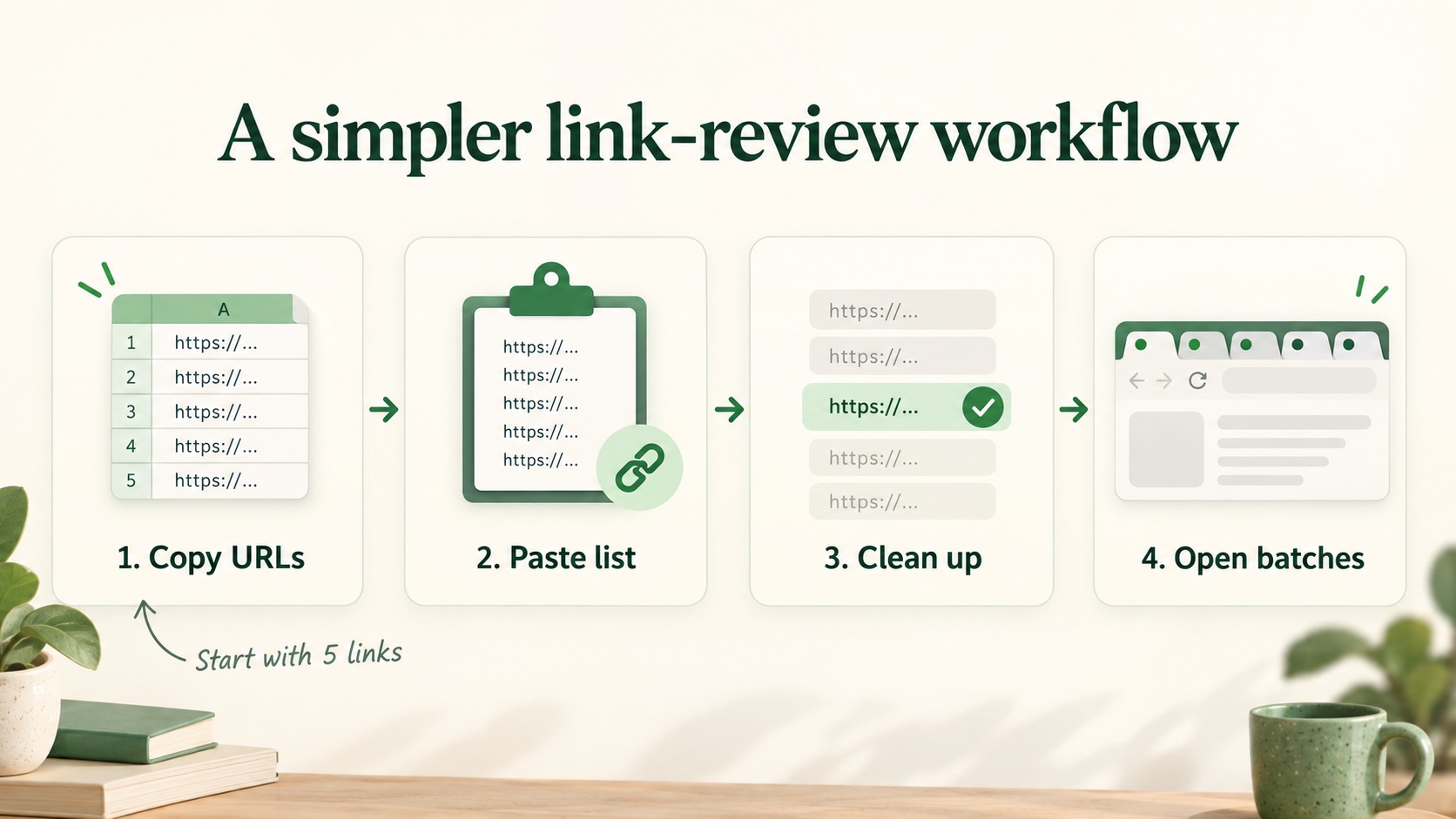
5. Open multiple links in manageable batches
Under Settings & progress, start with 5 links per batch. Choose a delay if you want destination pages to load in sequence with a pause, then click Open batch. Review those pages and return to OpenURL when you are ready for the next group.
The delay controls destination loading. OpenURL reserves the tabs when you click, so several tabs can appear before their pages finish loading. A delay does not replace the browser's permission to open pop-ups.
Why did Chrome open only one tab?
Chrome may have blocked the additional tabs. Click the pop-up-blocked icon in the address bar, allow pop-ups for the OpenURL site shown there, and try Open batch again. Google's guide to allowing pop-ups for a specific site explains the setting. You do not need to allow pop-ups for every website.
OpenURL keeps blocked links in the remaining queue. If you still need help, see the Help Center.
6. Track your review in the spreadsheet
Add a separate column in Excel for your review notes, such as “checked,” “needs follow-up,” or “unavailable.” OpenURL's Opened counter tracks opening progress; it cannot tell whether you have read a page or finished your review.
If you need to stop, use Export remaining URLs to save the unprocessed links. Use Cancel queued openings if destination loading is still pending. Keep your spreadsheet and any exported list so you can deliberately resume the right set of pages later.
Frequently asked questions
Do I need an Excel macro or browser extension?
No macro or extension is needed for the copy-and-paste workflow. You need a list of actual web addresses and a browser that permits the requested tabs to open.
Can I paste URLs from Google Sheets too?
The same approach works with a column of plain URL text copied from Google Sheets: paste it into the workspace and inspect the resulting list. As with Excel, do not assume that copying a clickable label will provide its underlying destination.
Does importing a CSV upload my spreadsheet?
OpenURL processes the imported file contents in your browser. Your URL draft is stored locally in that browser, and Clear removes the saved draft. Opening a URL connects to its destination website. See the Privacy Policy for the site's broader privacy information.
How can I use this workflow for a content audit?
Start with a list of related pages, then review the text and important link destinations. The SEO keyword and link audit guide walks through a practical example for an online store.
Ready to review your spreadsheet links? Paste a short URL column into OpenURL, check the cleaned list, and open your first batch.