
You update a buying guide, but an old product name still appears halfway down the page. A helpful internal link now redirects to the store homepage. Another link opens a product that no longer matches the recommendation. These are practical content-maintenance problems that a short, focused SEO review can uncover.
This walkthrough uses a fictional outdoor store with several backpack guides. The task is to find pages about “carry-on backpack,” check how that topic is covered, and verify the important links before publishing an update. OpenURL helps you open the selected pages in batches; the keyword search and link review happen in your browser.
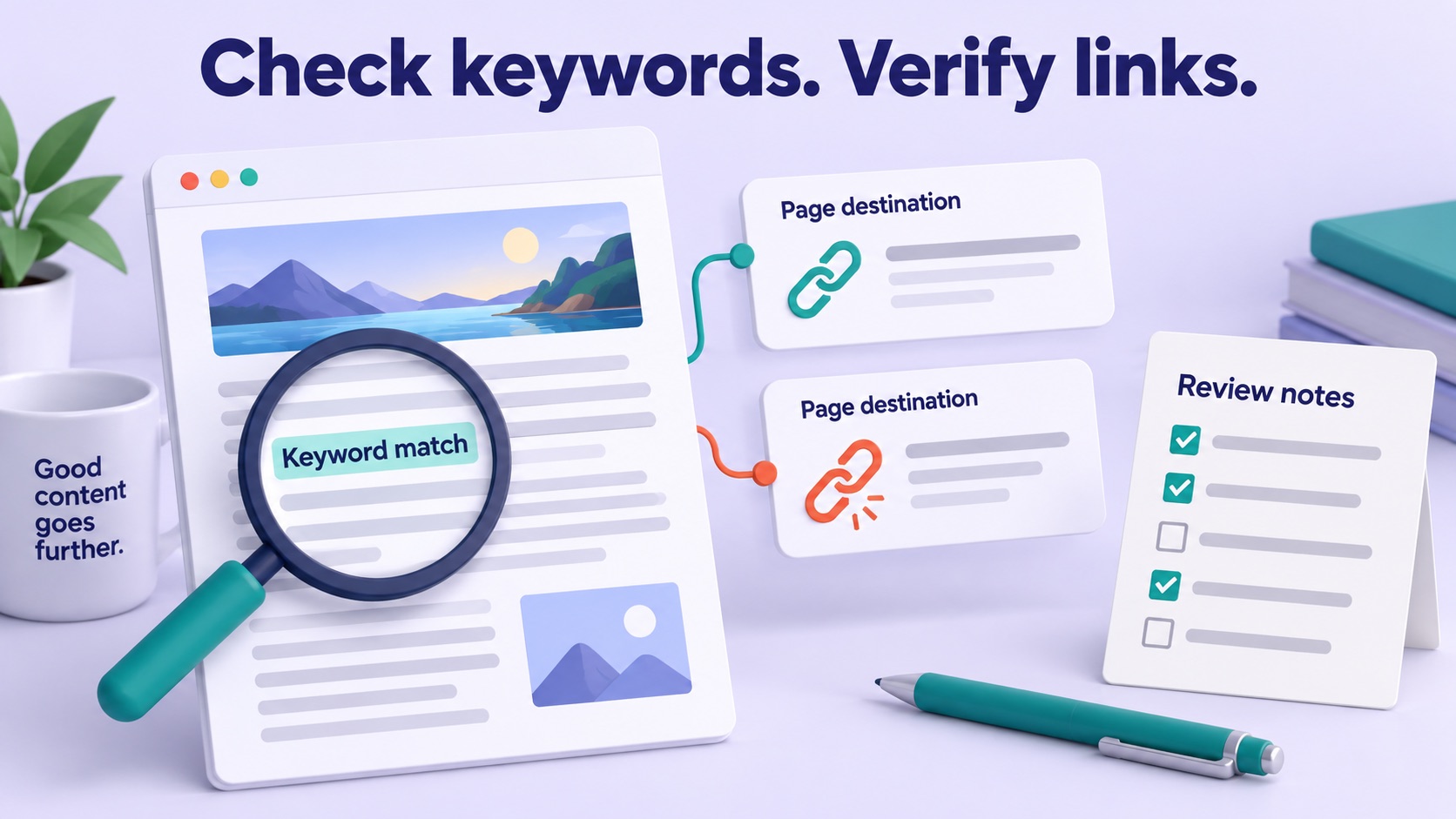
1. Find the pages associated with a target keyword
Start with a small topic group rather than every URL on the site. In this example, the group includes a buying guide, a size guide, and a packing checklist. Each page may answer a different question even when all three mention carry-on backpacks.
If you manage the site in Google Search Console, use its Performance report to examine relevant queries and the pages associated with them. Google's Search Console introduction explains the query and page breakdowns. Choose the date range deliberately and retain it in your notes, so you know what period informed the selection.
You can also use your CMS search or a focused search-engine query to discover candidate pages. For example:
site:example.com/blog "carry-on backpack"
site:example.com/guides "cabin backpack"
These are discovery queries, not a complete inventory of the site. Google's search-operator documentation notes that operators have indexing and retrieval limits. A missing result does not prove that a page is absent or unindexed.
2. Turn the candidates into a review queue
Copy the actual page addresses into OpenURL, one per line. Keep the source list and the reason each page was selected in your notes. For this example, your queue might contain:
https://example.com/blog/carry-on-backpack-guide
https://example.com/guides/backpack-size
https://example.com/blog/weekend-packing-list
Use Clean up links to remove duplicate entries and filter invalid URL text. Leave Domain prefix and Path suffix empty: you want to inspect these exact pages, not change their addresses.
Select a small batch and click Open batch. Keep your review notes beside the browser. A valid URL in OpenURL means the address passed its input checks; it does not mean the server returned a working page.
3. Find the keyword, then read its context
On each page, press Ctrl+F on Windows or Command+F on Mac to search the displayed text. Try the main phrase, an obvious variant such as “cabin backpack,” and any old product name you are replacing. Expand relevant sections if needed and inspect the page itself, rather than relying solely on the match count.
For the buying guide, ask concrete questions:
- Does the main heading make the page's purpose clear?
- Does the introduction answer the reader's buying question?
- Are the size advice, product references, and examples still accurate?
- Does the phrase appear naturally where it helps the reader?
A keyword match only locates text. It does not establish that the page answers the searcher's question, and this review does not require a target keyword density. The packing checklist may use different wording while still serving its intended purpose.
Browser Find is also not a metadata audit. It does not tell you whether a meta description, canonical link, or indexing directive is configured correctly. Inspect those separately in the CMS or appropriate technical tools when they are part of the task.
4. Verify important link destinations
Start with the links a reader is most likely to need: the recommended product, a size chart, a related guide, and any source supporting a factual claim. Copy their destination addresses into a second OpenURL list for a separate review pass. Keep a note of the source page and link text for each destination, so a finding can be traced back to the link that needs editing.
For each destination, check what actually opens:
- Relevant page: does it deliver what the link text promises?
- Redirect: has the address changed, and is the final page still appropriate?
- Error or empty content: is the reader shown a missing-page message, a blank result, or an unavailable item?
- Access barrier: does a sign-in screen prevent the intended reader from reaching the information?
- Section link: if the URL contains a fragment such as
#size-chart, does it reach the expected section?
For example, a link labelled “Compare cabin backpack sizes” that ends at a generic homepage is an editorial problem even if the homepage loads normally. Record the final URL and the mismatch instead of simply marking the link “working.”
5. Confirm technical errors instead of guessing
A missing-page design does not reveal the HTTP status by itself. If you need to confirm the response, open Chrome DevTools, select Network, reload the destination, and inspect the main document request and its status. Chrome's Network panel guide explains how to inspect requests.
Distinguish a true 404 response from an error-looking page returned with 200. Google discusses this mismatch under soft 404 errors. A browser visit alone is not a verdict on how Google has indexed the page.
OpenURL does not crawl a website, extract all its links, report HTTP status codes, or identify broken links automatically. Use it to organize the manual review; use a crawler or dedicated link checker when you need site-wide coverage.
6. Write a fix list you can act on
Keep the finding specific enough that an editor can make the correction without repeating the whole investigation. A useful record contains the source URL, keyword or anchor text, observed problem, destination URL if relevant, proposed action, and review date.
For the fictional backpack guide, the result could be:
- Outdated product reference: the guide still names a discontinued model; review the recommendation and update the surrounding explanation.
- Wrong destination: the size-chart link redirects to the homepage; replace it with the verified size guide.
- Unanswered question: the guide mentions cabin use but does not explain where readers should verify carrier-specific limits; add a useful explanation and an appropriate source.
After editing, revisit the changed pages and click the corrected links from their original context. Record the recheck separately from the first finding. You now have a small, traceable content audit rather than an unstructured collection of browser tabs.
Build your first keyword-and-link review queue with a handful of related pages. Repeat the same process for the next topic group once the first set of fixes is complete.